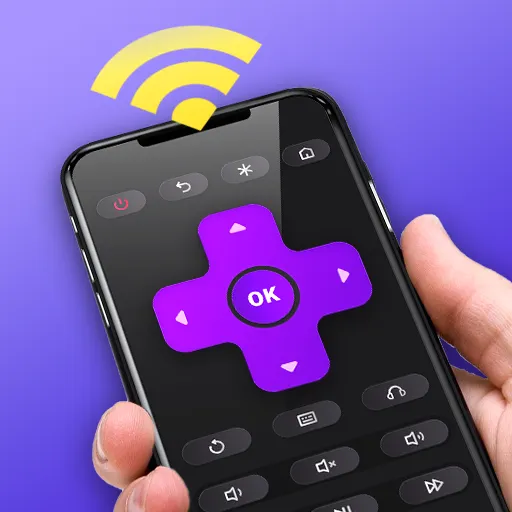


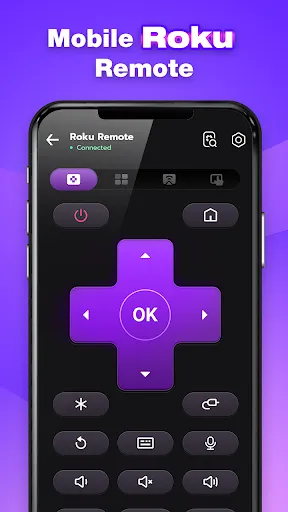
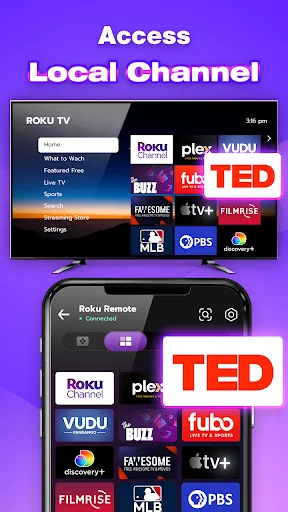
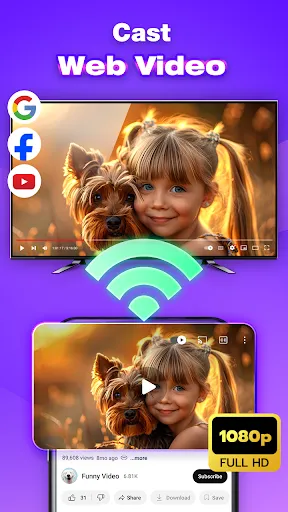
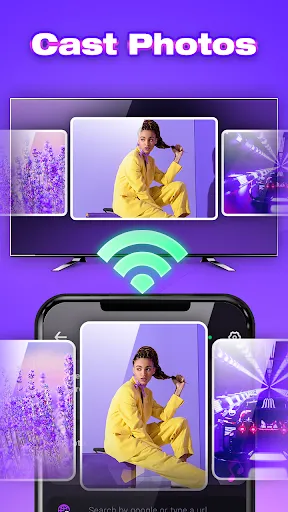
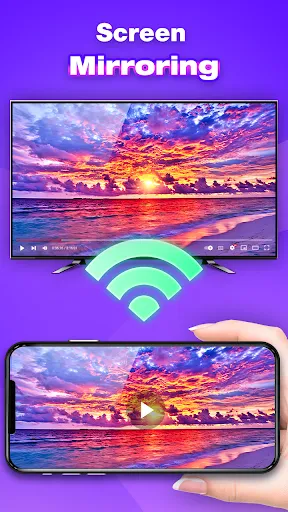
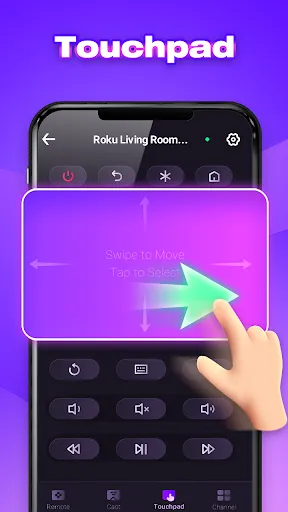
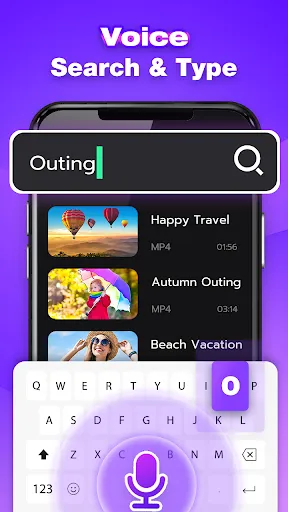
The "Remote Control for Roku TV" app offers a variety of features designed to enhance your streaming experience. One of its primary functions is to provide a virtual remote control that mimics the physical Roku remote, allowing users to navigate menus, adjust volume, and switch channels seamlessly. The app also includes a keyboard feature, making it easier to search for content without the hassle of using an on-screen keyboard.
Another notable feature is the ability to cast media from your mobile device directly to your Roku TV. This allows users to share photos, videos, and music effortlessly. Additionally, the app supports voice commands, enabling users to search for shows or control playback using simple voice prompts. The interface is user-friendly, ensuring that even those who are not tech-savvy can navigate it with ease. Furthermore, the app can connect to multiple Roku devices, making it convenient for households with more than one TV.
Using the "Remote Control for Roku TV" app is straightforward and user-friendly. First, download the app from your device's app store and install it. Once installed, ensure that your mobile device and Roku TV are connected to the same Wi-Fi network. Open the app, and it will automatically detect your Roku device. Select your Roku TV from the list to establish a connection.
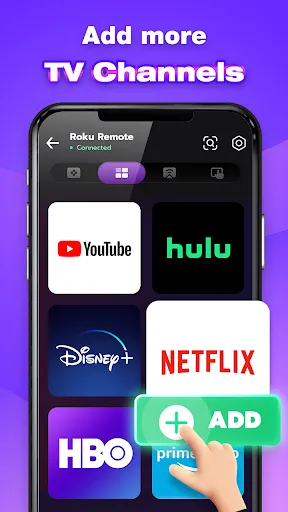
After connecting, you will see a virtual remote interface on your screen. You can use the directional pad to navigate through menus, select options, and control playback. To search for content, tap on the keyboard icon and type in your query. If you prefer voice commands, simply tap the microphone icon and speak your request. Additionally, you can access your favorite channels and settings through the app, making it a comprehensive tool for managing your Roku TV experience.
The "Remote Control for Roku TV" app comes with several advantages. One of the main benefits is the convenience it offers; users can control their Roku TV from anywhere within their Wi-Fi range, eliminating the need to search for a physical remote. The app's ability to cast media from mobile devices adds another layer of functionality, allowing for easy sharing of content. Additionally, the voice command feature enhances usability, making it quicker to find shows or control playback.
However, there are some drawbacks to consider. The app requires a stable Wi-Fi connection, which can be a limitation in areas with poor connectivity. Some users may also find the app's interface less intuitive compared to a physical remote, especially when navigating complex menus. Furthermore, battery drain on mobile devices can be a concern, as using the app for extended periods may consume significant power. Overall, while the app offers many useful features, potential users should weigh these pros and cons before relying solely on it for their Roku TV control.

 Easily navigate channels and apps with a user-friendly interface. Control your Roku TV from anywhere in the room without interruptions. Access voice control features for hands-free operation and convenience. Quickly launch favorite streaming services with dedicated shortcut buttons. Enjoy a comfortable viewing experience without getting up from your seat.
 Limited range can restrict viewing options in larger spaces Frequent battery replacements can be inconvenient Small buttons may be difficult for some users to navigate easily
  Google Play
  App Store
 Yes, users can submit suggestions or feedback through the app’s support section or via the developer's official contact channels.
The app may collect certain usage data for improving the service, but it typically does not collect personally identifiable information without user consent.
No, the app requires an active internet connection to control your Roku device, as it communicates over Wi-Fi.
You can cancel your subscription through your app store settings or within the app's account management section, depending on your platform.
The subscription cost varies based on the chosen plan, but details are available within the app for user convenience.
No, account management must be done through the Roku website or mobile app, not via the remote.
To activate your Roku account, go to the Roku website, log in, and follow the prompts to enter the activation code displayed on your TV.
You can contact Roku customer service via their website or by calling their support line for immediate assistance with your remote.
You can reach Roku customer service through their official website or by calling their support number listed in the app.
If you can’t remember your customer number, log in to your Roku account online to find it, or contact customer service for help.