







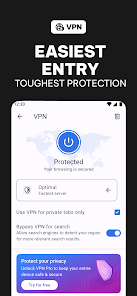
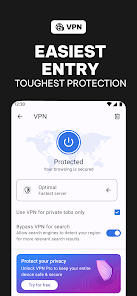


Opera: Private Web Browser is designed to provide users with a secure and private browsing experience. One of its standout features is the built-in VPN, which allows users to browse the internet anonymously by masking their IP address. This feature enhances privacy and security, especially when using public Wi-Fi networks.
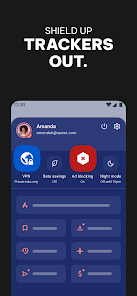
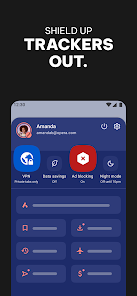
Another notable feature is the ad blocker, which helps to eliminate intrusive advertisements, resulting in faster page loading times and a more enjoyable browsing experience. The browser also includes a night mode, which reduces eye strain during nighttime browsing by adjusting the screen's brightness and color temperature.
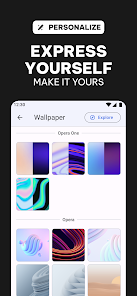
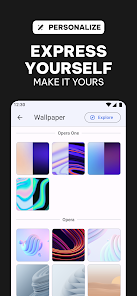
Additionally, Opera offers a user-friendly interface with customizable themes and a speed dial feature that allows users to quickly access their favorite websites. The browser supports various extensions, enabling users to enhance functionality according to their needs. Furthermore, it includes a built-in cryptocurrency wallet, making it easier for users to manage their digital assets securely.
Using Opera: Private Web Browser is straightforward and user-friendly. To get started, download the app from your device's app store and install it. Once installed, open the app, and you will be greeted with a clean and intuitive interface. You can begin browsing by entering a URL in the address bar or selecting a site from your speed dial.
To activate the built-in VPN, navigate to the settings menu and toggle the VPN option on. This will allow you to browse securely and privately. If you wish to block ads, ensure the ad blocker feature is enabled in the settings as well. You can customize your browsing experience further by exploring the themes and extensions available in the app.
For enhanced privacy, consider using the incognito mode, which does not save your browsing history. You can also manage bookmarks and access your browsing history easily through the app's menu. Overall, Opera provides a seamless browsing experience with various features designed to prioritize user privacy and convenience.
Opera: Private Web Browser comes with several advantages that make it a popular choice among users. One of the primary pros is its built-in VPN, which enhances privacy and security while browsing. The ad blocker is another significant benefit, as it improves loading times and reduces distractions from ads. Additionally, the user-friendly interface and customizable features allow users to tailor their browsing experience to their preferences.
However, there are some drawbacks to consider. One potential con is that the VPN may not be as fast as some dedicated VPN services, which could affect browsing speed. Furthermore, while the ad blocker is effective, some users may find that certain websites do not function properly without ads. Lastly, while Opera is generally secure, it may not have the same level of trust as more established browsers like Chrome or Firefox.
In summary, Opera: Private Web Browser offers a range of features that prioritize user privacy and convenience, making it a solid choice for those seeking a secure browsing experience. However, users should weigh the pros and cons to determine if it meets their specific needs.

 Opera browser offers a built-in VPN for enhanced online privacy. It features an AI-driven personal assistant for smarter browsing. The browser includes ad-blocking technology for faster page loads. Users enjoy a customizable interface for a personalized experience. Opera integrates with social media for seamless communication while browsing.
 Limited extension support can hinder customization options for users. Performance may lag behind leading competitors in resource-intensive tasks. Privacy features often require additional configuration to ensure optimal protection.
  Google Play
  App Store
 Yes, users can submit suggestions or feedback directly through the app or via the official Opera website, where there are dedicated channels for user input.
Opera browser with AI prioritizes user privacy and minimizes data collection, but it may collect certain information for improving services, which is outlined in their privacy policy.
Opera browser with AI offers some offline capabilities, such as storing previously visited pages for offline access, but full functionality typically requires an internet connection.
You can cancel your Opera browser with AI subscription by going to your account settings within the app or through the platform where you purchased the subscription. Instructions will be provided there.
The subscription to Opera browser with AI typically costs a monthly fee, but pricing may vary based on the specific features and services offered at the time.
Yes, customer service can assist you with resetting your password. Visit the Opera support page for detailed steps.
You can reach customer service through the help section in the Opera browser or by visiting the official Opera website for support options.
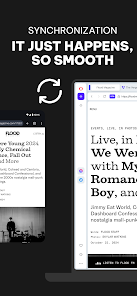
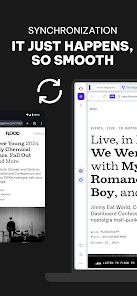
Use the same account credentials on each device. Make sure to enable sync settings for a seamless experience across all devices.
You can find your customer number by navigating to the account settings within the Opera browser. Look for account details or information.
To log in on a new device, open Opera, go to the login section, and enter your credentials. Follow the prompts to verify your account.