



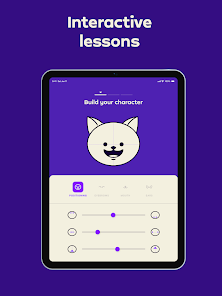

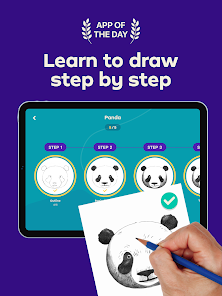
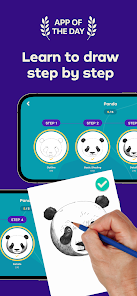
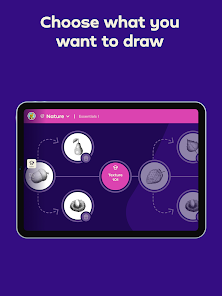
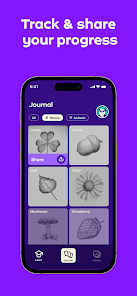

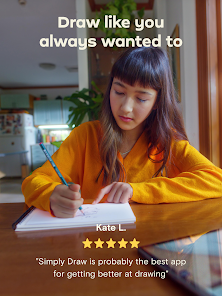
As someone who loves art, I often find myself looking for ways to integrate drawing into my daily routine. Simply Draw has become my go-to app for those moments. For example, during my lunch breaks at work, I pull out my phone and dive into a quick drawing session. The app’s bite-sized tutorials allow me to create something beautiful in a short amount of time. On weekends, I use the app to unwind after a long week, often choosing a more complex project that I can work on for hours, losing myself in the creative process.
The user interface of Simply Draw is clean and intuitive, making it easy for anyone to navigate. The main screen presents a well-organized menu of tutorials, tools, and community options. I appreciated how quickly I could switch between different brushes and colors, as the workflow felt seamless. Performance-wise, the app runs smoothly on my device without lag, which is crucial when you’re in the zone and creating art. The overall experience was satisfying, leaving me feeling accomplished after each session, regardless of my skill level.
Simply Draw offers a free version that provides access to a good range of features, but for those who want to unlock the full potential of the app, there is a premium subscription available. The pricing is reasonable, especially considering the extensive library of tutorials and tools that come with the premium version. I found that investing in the subscription was worth it, as it significantly enhanced my drawing experience and encouraged me to explore new styles.
The developers of Simply Draw are quite proactive in ensuring the app stays fresh and user-friendly. I’ve noticed several updates since I started using it, adding new tutorials and improving existing features. The support section within the app is helpful, providing FAQs and easy access to customer service. When I had a minor issue with a tutorial, I reached out for support and received a prompt and friendly response, which made me feel valued as a user.
For American users, security and privacy are paramount, and Simply Draw addresses these concerns effectively. The app can be found on both the App Store and Google Play, ensuring it meets the standards set by these platforms. Registration is straightforward, requiring minimal personal data, which is a relief for privacy-conscious users like myself. The app does incorporate ads, but they are non-intrusive and do not detract from the overall experience. I also noticed that the app does not track my behavior outside of its platform, allowing me to draw freely without the worry of my data being shared or sold. This commitment to user privacy enhances my overall trust in Simply Draw.

 Simply Draw: Learn to Draw offers a range of advantages for aspiring artists. Discover your creativity today!
User-friendly interface Step-by-step tutorials Diverse drawing styles Fun challenges and rewards Share your art with others
Simply Draw: Learn to Draw offers a range of advantages for aspiring artists. Discover your creativity today!
User-friendly interface Step-by-step tutorials Diverse drawing styles Fun challenges and rewards Share your art with others 
 Limited drawing tools available Steep learning curve for some Few tutorials for beginners Ads can disrupt experience
  Google Play
  App Store
 Simply Draw is designed for users of all ages, making it a family-friendly app. Children can use it with guidance from parents, and adults will find it equally engaging. The tutorials cater to various skill levels, ensuring that everyone can find something suitable for their age and experience.
Yes, Simply Draw encourages user feedback and suggestions. There is typically a feedback option within the app where users can share their thoughts or request new features. The development team values user input and often considers it for future updates.
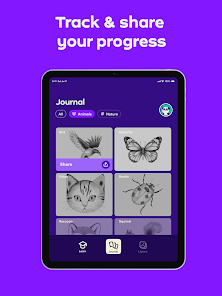
Yes, Simply Draw allows users to share their creations through social media platforms or directly with friends and family. The app often includes a gallery feature where you can save your artwork and showcase it within the app community or externally. Sharing your progress can be a great way to receive feedback and encouragement.
Absolutely! Simply Draw is perfect for beginners. The app provides clear instructions and tutorials that are easy to follow, making it suitable for users with no prior drawing experience. You can start from the basics and gradually work your way up to more advanced techniques.
Simply Draw can be used offline once it is downloaded and installed. However, some features, such as accessing new tutorials or community content, may require an internet connection. It’s best to connect to the internet periodically to take advantage of all the app's offerings.
You can contact customer service by visiting the app's settings and selecting "Help" or "Contact Us" for support options.
Your customer number can typically be found in your account settings within the app or in the confirmation email after your purchase.
To log in, open the app and enter your registered email and password on the login screen.
Yes, if you purchased a premium version, you may need to enter an activation code found in your confirmation email after purchase.