





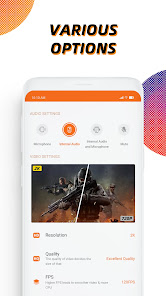
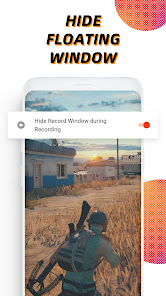
"Screen Recorder - Vidma Record" offers a variety of features designed to enhance the screen recording experience. One of its standout features is the ability to record in high definition, ensuring that the captured content is clear and detailed. Users can also choose to record audio from the device's microphone, making it ideal for creating tutorials or commentary videos. The app supports various resolutions and frame rates, allowing for customization based on user preferences.
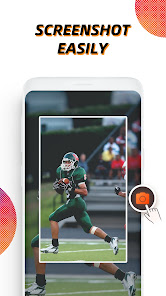
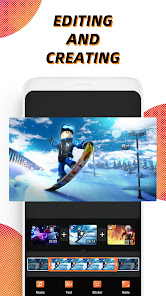
Additionally, the app includes a built-in video editor, enabling users to trim, merge, and add effects to their recordings without needing third-party software. The user interface is intuitive, making it easy for both beginners and experienced users to navigate. Another notable feature is the option to capture screenshots, which can be useful for creating guides or sharing information quickly. Overall, "Screen Recorder - Vidma Record" combines functionality with user-friendly design, making it a popular choice among content creators.
Using "Screen Recorder - Vidma Record" is straightforward and user-friendly. To get started, first download and install the app from your device's app store. Once installed, open the app and grant the necessary permissions, such as access to your microphone and storage. After setting up, you will see a floating icon on your screen, which you can tap to access recording options.
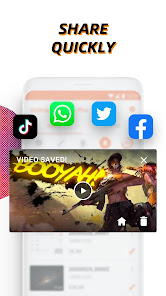
To begin recording, simply tap the record button, and the app will start capturing your screen activity. You can also choose to enable or disable audio recording based on your needs. During the recording, you can pause or stop the session at any time using the floating icon. After finishing, the app will save your video automatically, allowing you to edit or share it directly from the app. With these simple steps, you can easily create high-quality screen recordings for various purposes.
"Screen Recorder - Vidma Record" comes with several advantages that make it appealing to users. One of the primary pros is its high-quality recording capabilities, which allow for clear and professional-looking videos. The built-in video editor is another significant benefit, as it eliminates the need for additional software to edit recordings. The app's user-friendly interface makes it accessible for users of all skill levels, and the ability to record audio adds versatility for creating tutorials or commentary.
However, there are some drawbacks to consider. Some users have reported occasional performance issues, such as lag during recording, especially on older devices. Additionally, while the app is free, certain advanced features may require in-app purchases, which could be a downside for users looking for a completely free solution. Overall, while "Screen Recorder - Vidma Record" has its limitations, its strengths make it a valuable tool for screen recording and video creation.

 Capture high-quality screen recordings effortlessly with intuitive controls. Record gameplay, tutorials, or video calls seamlessly for sharing. Edit recordings instantly with built-in tools for a polished finish. Save recordings in multiple formats to suit your needs. Share directly to social media for quick audience engagement.
 Limited editing features may hinder creative control over recorded content The app's ads can disrupt user experience significantly High battery consumption may affect device performance during use
  Google Play
  App Store
 Screen Recorder - Vidma Record may collect certain data to improve user experience, but it is designed with user privacy in mind and does not collect sensitive personal information without consent.
Yes, Screen Recorder - Vidma Record offers a free version with basic features, while additional functionalities can be accessed through a premium subscription.
No, Screen Recorder - Vidma Record does not require an internet connection to record your screen, although an internet connection is needed for sharing videos or accessing certain online features.
You can contact support or send feedback via the app's help section, which typically includes options for email support or a feedback form, or you can visit the official website for more information.
You can manage or cancel your subscription through the app's settings or your app store account settings, where you can view your subscriptions and make necessary changes.
Yes, you can activate your account by entering your customer number during the registration process.
Customer numbers are unique and cannot be changed. If you have concerns, please contact customer service for further assistance.
You can reach our customer service via the support section in the app or by emailing support
After registration, check your email for an activation link. Click the link to activate your Vidma Record account.
To log in, open the app and enter your registered email and password. If you’ve forgotten your password, use the ‘Forgot Password’ option.